Your First Conversation
This guide walks you through asking your first question, starting new conversations, and finding your past ones. That's everything you need to get started.
In this lesson, you'll send your first message to the AI and see it respond. By the end, you'll know your way around the screen.
What You're Looking At
When you log in, you'll see a screen like the one below. Here's what the main areas are for:
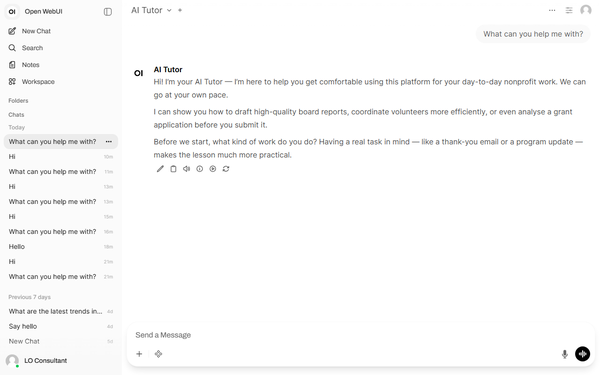
- Left side — Your past conversations and, for some users, the Workspace area live here.
- Centre — This is where the AI responds to you.
- Bottom — This is where you type your questions and requests.
- Top left — This shows which AI assistant you're using and lets you switch assistants.
Ask Your First Question
Let's jump right in. You're going to ask the AI a question and see how it responds.
Where to look: At the very bottom of the screen, you'll see a text box. It might say something like “How can I help you?” inside it.
What to do: Click on that text box and type a question. Try: “What can you help me with?”
How to send it: Press the Enter key on your keyboard, or click the small arrow button next to the text box. Both work the same way.
What happens next: You'll usually see a pulsing circle first, then the AI's response appears in the centre of the screen. Sometimes the text shows up a few words at a time. Both are normal signs that the AI is working.

Now you try. Open the platform and send your first message.
Try it in the platformStart a New Conversation
When you move on to a new topic or task, it's best to start a fresh conversation. This keeps things clear for both you and the AI.
Where to look: At the top of the screen, on the left side, you'll see a button labelled “New Chat”. If the sidebar is open, it's at the very top of the sidebar. If the sidebar is closed, look for a small pen-and-paper icon.
What to do: Click “New Chat”.
What happens next: The screen clears and you're ready to start fresh. Your previous conversation isn't lost — it's saved automatically. You'll learn how to find it in the next step.

Find Your Past Conversations
Nothing is lost. Every conversation you've had is saved and easy to find.
Where to look: On the left side of your screen, you'll see a list of your past conversations. Each one has a title based on what you talked about, and a time stamp showing when it happened. This panel is called the sidebar.
What to do: Click on any conversation in the list to reopen it. You'll see the full conversation exactly as you left it.
What happens next: The conversation loads in the centre of the screen. You can continue where you left off, or just read back through what was said.

Show and Hide the Sidebar
Sometimes you want more room to read. You can hide the sidebar to make the chat area wider, and bring it back whenever you need it.
Where to look: At the very top of the screen, on the left side, you'll see a small menu icon. In the current interface it looks like three short vertical lines.
What to do: Click it once. The sidebar slides away and you get the full width of the screen for your conversation.
To bring it back: Click the same button again. The sidebar slides back into view with all your conversations still there.

You're Ready
You now know how to have a conversation with an AI, start a new one, find your past conversations, and manage your screen space. That's everything you need to get started.
Ready to try for real?
Open the platformIn the next lesson, you'll learn how to choose different AI assistants for different tasks — like picking which colleague to ask for help.
Next: Lesson 2 — Pick the Right Assistant →