Do Real Work
You’ve learned the tools. Now use them all together on a real task: turning messy meeting notes into a polished board report.
This is where everything comes together. You’ll pick an assistant, give it a document, load a prompt starter, and get a polished board report — all in about five minutes.
What You’ll Build
By the end of this lesson, you’ll have a clean, formatted board report with:
- A summary of discussion
- Key decisions
- Action items with owners and deadlines
- A financial overview
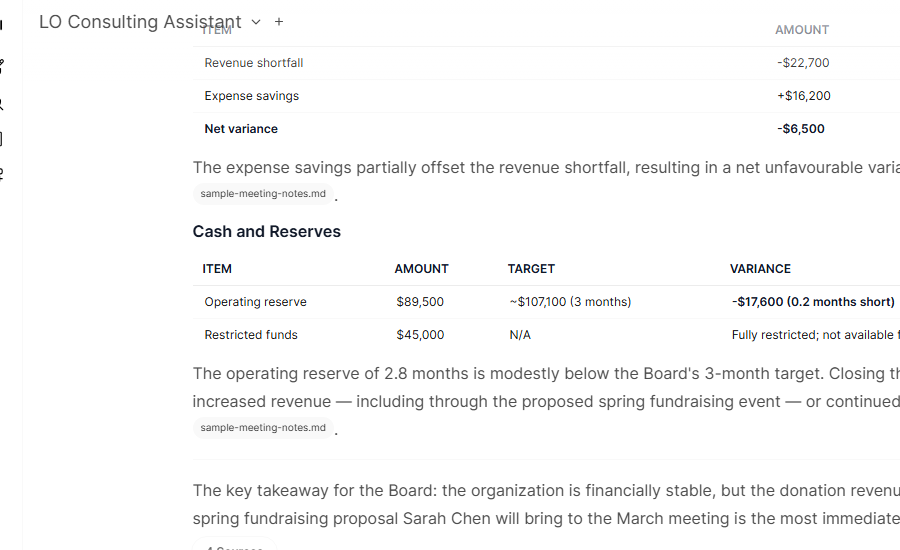
Here’s the plan: pick your assistant, attach your document, load the prompt starter, ask for a draft, refine it, and use the result. Six steps, all skills you already know.
Start Fresh and Pick Your Assistant
You know this part. Start a new conversation and choose the right assistant for the job.
What to do: Click “New Chat” to start a fresh conversation. Then click the assistant name at the top of the screen and switch to Thoughtful Assistant.
Why this assistant: This assistant takes a little longer, but it does a better job when the structure matters and you want a cleaner draft.

Attach the Meeting Notes
Give the assistant something to work with. You’ll attach a document right in the message box.
What to do: Click the + button beside the message box. Choose Upload Files, then select the sample meeting notes document from your computer.
What happens: A small chip appears above the message box showing the document name. This means the assistant will be able to read the full document when you send your message.

Load the board-report Prompt
Tell the assistant what format to follow. You’ll load a saved prompt starter that structures the output.
What to do: In the same message box, type /board. A list of available prompt starters will appear. Select board-report.
What happens: The text from /board-report is inserted into the message box. The assistant now knows your document and the format you want.
Ask for the Draft
This is the moment. One sentence, and the AI does the rest.
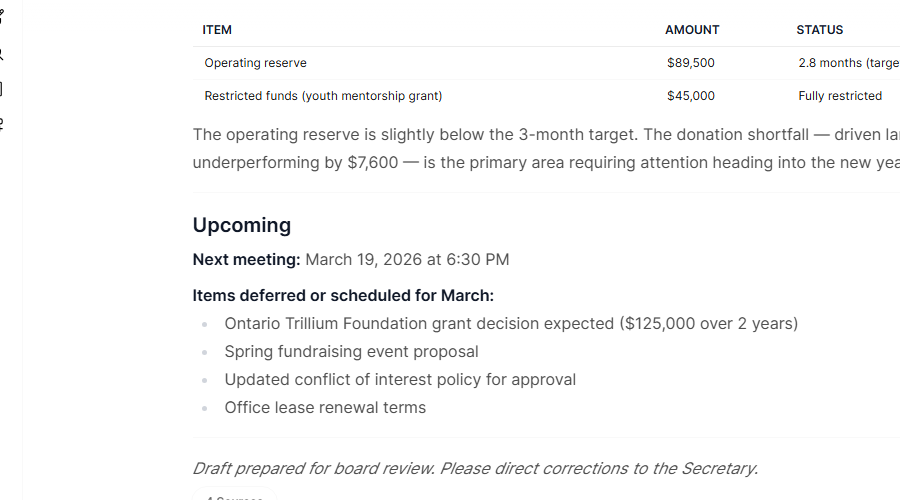
What to type: “Please draft a board report from these meeting notes. Include the key decisions, action items, and financial summary.”
How to send it: Press Enter.
What happens: Watch the report generate. Text appears a few words at a time — headings, summaries, action items, financials — all structured and formatted. This is the part where people say “wow.”
Review and Refine
The first draft is a starting point. Now make it yours.
Read through the draft. Notice what the AI got right. The structure should be clean, the key points captured, the action items listed.
Spot what to change. Maybe the financial summary is too brief. Maybe you want more detail on a particular decision. That’s normal — and easy to fix.
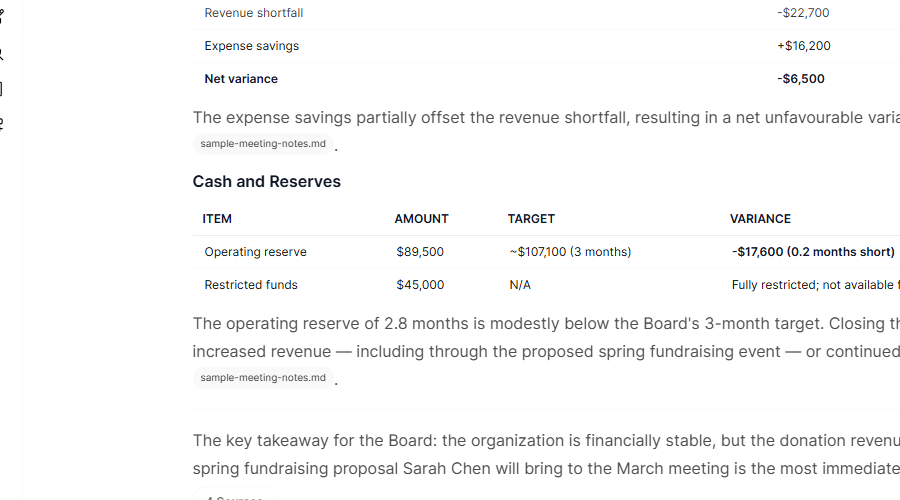
Ask for a revision. Type a follow-up message. For example: “Can you expand the financial summary to include the variance between actual and budgeted amounts?”
What happens: The assistant revises that section. You get an updated version with the changes you asked for.
This is how you work with AI — not a single magic prompt, but a conversation. Ask, review, refine. Each round gets you closer to what you need.
Use the Result
Your report is ready. Now get it where it needs to go.
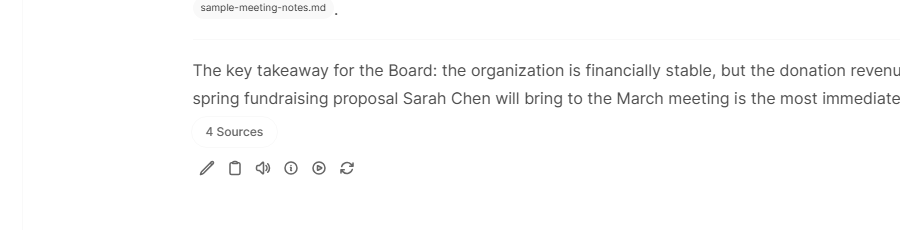
How to copy: Select the text in the AI’s response and copy it, or look for the small copy button that appears when you hover over the response. One click copies the whole thing.
Where to paste: Word, Google Docs, an email, a shared drive — wherever your board report needs to go. The formatting carries over.
Ready to try the full process yourself?
Try it with the sample notes/board-report before sending.
You Did It
You now know everything you need to use this platform for real work. You can pick the right assistant, give it your documents, load a prompt starter or skill, and refine the results.
Tomorrow, bring your actual meeting notes and do exactly what you just did with the sample. That’s the best way to make this stick.
What to Try Next
- Convene a panel of experts on a strategic question — load the Convening Experts skill with $ and ask something like “How should we approach our fundraising strategy for next year?” The AI assembles specialists who tackle your question from multiple angles.
- Summarise a long policy document — upload it from the + menu and ask Document Analyst for a plain-language summary.
- Draft a program update for your funder — use Thoughtful Assistant when you want a more polished first draft.
- Brainstorm ideas for your next event — ask Quick Assistant for a rapid list.
- Prepare talking points for a difficult conversation — ask Thoughtful Assistant to help you think through it.
Beyond the Chat
This platform also has guided tools that handle more complex tasks step by step:
- Transcribe — convert audio and video recordings into text transcripts with speaker detection
- Data Cleaning — remove personal information from interview transcripts and survey responses
- Qualitative Analysis — build themes from interview transcripts with AI-assisted coding
- Branded Documents — generate LogicalOutcomes-styled reports and presentations
See the Tools page for details on each one.
Tips for Better Results
A few small changes to how you phrase things can make a big difference in what you get back.
| Instead of… | Try… | Why it’s better |
|---|---|---|
| “Write a report.” | “Draft a 1-page program update for our funder. The audience is people who don’t know our work.” | Says who it’s for, how long, and what context to assume. |
| “Summarise this.” | “Summarise the key decisions and action items from these meeting notes. Use bullet points.” | Tells the AI what to focus on and how to format it. |
| “Help with my evaluation.” | “I’m designing an evaluation for a youth mentoring program. Help me identify what to measure in the first year.” | Gives the AI enough context to be specific and useful. |
| “Is this good?” | “Review this draft proposal. Flag anything that’s unclear, and suggest stronger wording for the outcomes section.” | Asks for something specific rather than a vague opinion. |
Ready to do your own work?
Open the platform